
Bot activity:
see how crawlers really visit.
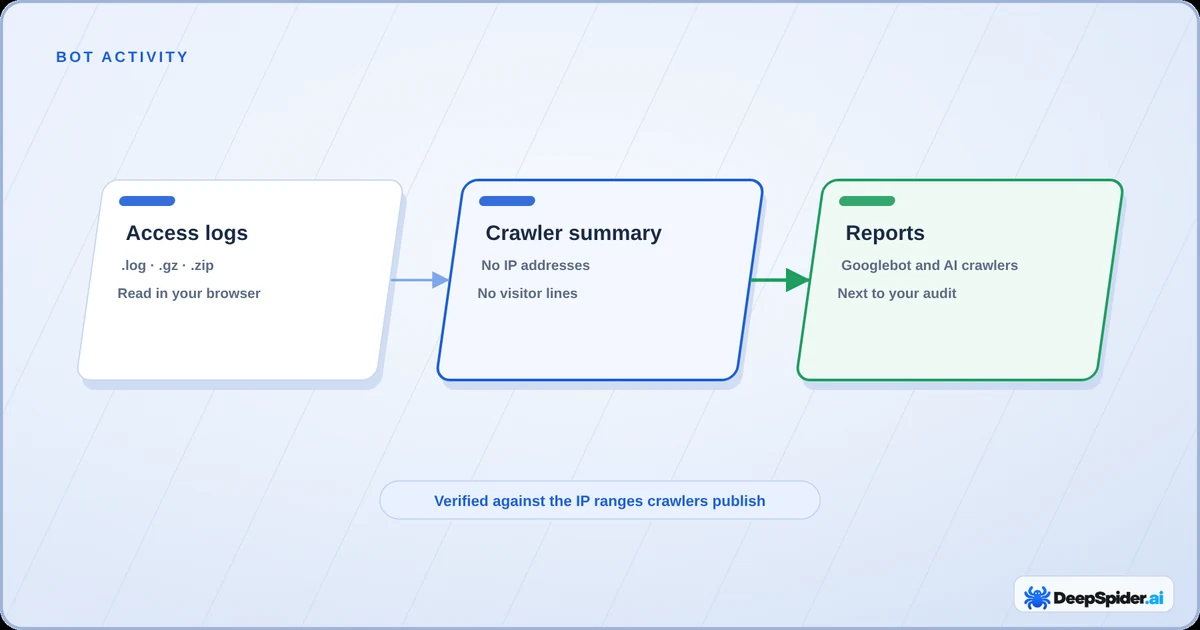
Your server logs know exactly when Googlebot and AI crawlers came by and what they got. Bot activity turns those logs into plain reports, without your visitors’ data ever leaving your computer.
- Open Data → Bot activity (logs) and drop your access log files on the page.
- Your browser reads the logs. Only a summary of crawler requests is uploaded, with no IP addresses and no visitor lines.
- Crawlers are checked against the IP ranges Google, Microsoft, OpenAI, Anthropic, Perplexity and Apple publish, so fake Googlebots are caught.
- Want it hands-free? Create a delivery URL and let your hosting or CDN send logs by itself.
Why look at server logs at all
An audit crawls your website the way DeepSpider sees it. Logs show what the real crawlers did: which pages Googlebot actually requests, how often, and what your server answered. It’s the closest thing to looking over Googlebot’s shoulder.
Typical finds:
- Important pages Googlebot hasn’t requested in weeks.
- Googlebot wasting its time on redirects, error pages or endless filter URLs.
- Server errors that only happen when crawlers come by.
- “Googlebots” that are really scrapers pretending.
- How much GPTBot, ClaudeBot, PerplexityBot and friends are crawling, and what for.
Where to get the logs
You need the access logs of the website, the ones with a line per request. Where they live depends on the setup:
- Hosting panel: many hosts have a Logs or Raw access logs section to download from.
- Your own server: typically
/var/log/nginx/access.logor/var/log/apache2/access.log, plus the rotated.gzfiles. - CDN: Cloudflare, CloudFront and similar services can export logs; often the CDN has the most complete picture.
Aim for 30 days or more. A week or two works, but some reports need at least 14 days before they judge anything. If you’re not sure where the logs are, your hosting provider or developer will know.
Upload the logs
- Open Data → Bot activity (logs) and pick the website in Select Website.
- Drop the files on the page, or press Choose log files.
.log,.gz,.zipand JSON lines work, up to 4 GB per file and 50 files at once. - Choose a saved audit to compare with. The reports appear as soon as the files are read.
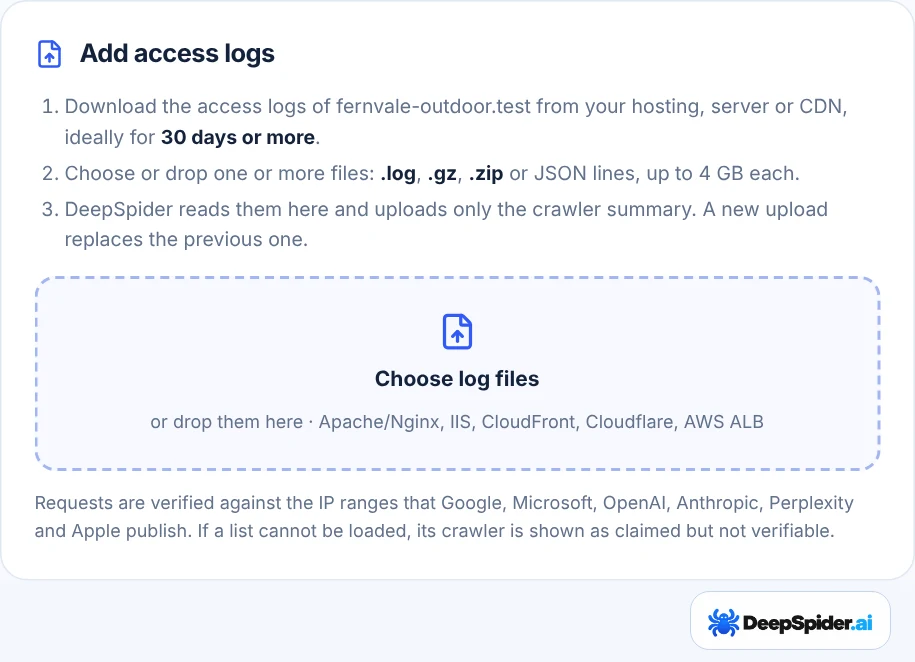
A new upload replaces the previous one, and the summary is kept for 90 days. You can remove it any time.
What leaves your computer, and what doesn’t
This is the bit people ask about most, so straight up: your log files are read in your own browser. They are never uploaded.
- Lines from ordinary visitors are skipped on the spot.
- For crawler lines, the IP address is only used, right there in the browser, to check whether the crawler is real.
- What gets uploaded is a summary: counts per crawler, per day and per URL path, and the status codes Googlebot got. No IP addresses, no visitor lines, no full user agents.
Real crawlers and impostors
Anyone can write “Googlebot” in their user agent, and scrapers do it all the time. So DeepSpider checks every crawler request against the IP ranges the crawler’s operator publishes: Google, Microsoft (Bingbot), OpenAI, Anthropic, Perplexity and Apple.
- Verified: the request came from the operator’s published addresses.
- Impersonating: it claims to be a crawler but came from somewhere else. These are counted separately and never treated as real crawling.
- Not verifiable: the crawler publishes no list, or a list couldn’t be loaded at that moment.
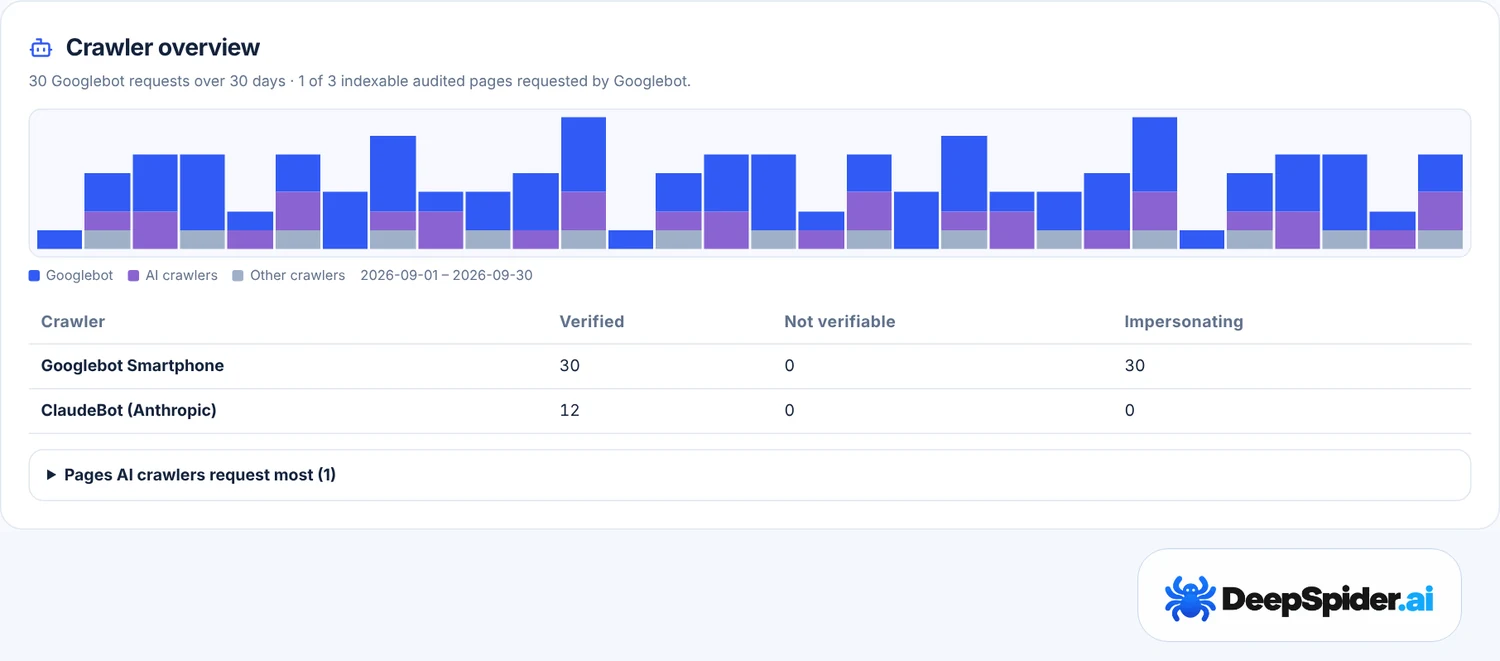
If nearly every Googlebot request fails the check, your logs probably record the address of a CDN or proxy instead of the visitor. The page warns you, and the CDN’s own logs are the better source.
What the reports show
The reports compare the crawling with your audit. The main ones:
- Indexable pages Googlebot did not request: pages that are fine in the audit but Google hasn’t come by.
- Googlebot requests on non-indexable URLs: crawling spent on redirects, errors, parameter URLs and pages that aren’t meant for Google.
- Pages Googlebot requests that the audit did not find: often old or orphaned pages.
- Server errors served to Googlebot and Status codes over time, so a bad day stands out.
- Googlebot requests to URLs disallowed in robots.txt.
- Crawl activity by site section: which folders get attention and which are ignored.
- Requests impersonating search crawlers.
Like Search Console, these are tips to review and don’t change your Website Health Score. A page that Googlebot didn’t request in your log period isn’t proof Google never fetched it; it may have come by before the logs start.
AI crawlers, by what they’re for
AI crawler activity splits AI crawlers by the job their operators say they do:
- Model training: GPTBot and ClaudeBot collect content that may be used to train models.
- AI search index: OAI-SearchBot, Claude-SearchBot and PerplexityBot build the indexes AI answers cite.
- User-requested fetches: ChatGPT-User, Claude-User and Perplexity-User load a page because someone asked about it.
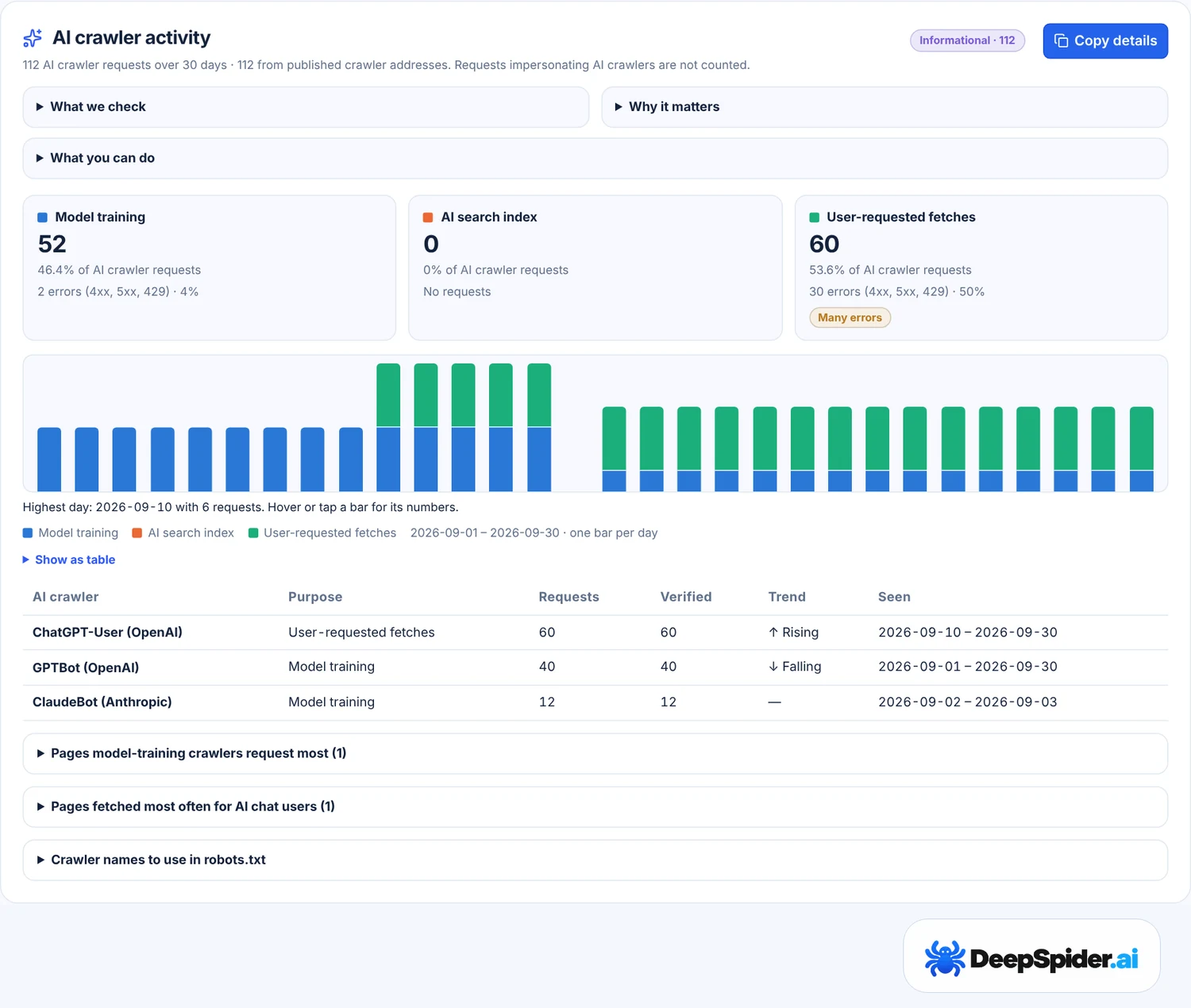
Why the split matters: blocking a training crawler in robots.txt doesn’t block the search crawlers that can show your pages as sources, and blocking a search crawler can drop you out of those answers. The report lists the exact crawler names to use in robots.txt, so you can decide one by one. There’s no right answer here; it’s your call.
Send logs automatically
Uploading files every month gets old fast. With automatic delivery your hosting or CDN sends access logs straight to DeepSpider, and the reports cover the last 7, 30 or 90 days.
- On the Bot activity page, press Create delivery URL. Copy it right away: it’s shown only once.
- Paste it in your provider’s log forwarding settings. How to set it up on the page has the steps for:
- Vercel: Log Drains (Pro and Enterprise plans);
- Netlify: Log Drains (Enterprise), with the option that removes IP addresses and user agents switched off, otherwise crawlers can’t be recognised;
- Cloudflare: Logpush to an HTTP destination;
- Your own server: a log shipper such as Vector or Fluent Bit.
- That’s it. Delivered lines are handled exactly like an upload: crawler requests are counted, nothing else is kept.
Think of the URL as a password for sending logs to this one website. If it leaks, press Replace URL and the old one stops working at once. Stop turns delivery off. Each website can receive up to 500 MB of logs a day.
Questions & answers
Do you store my log files?
No. The files are read in your browser and never uploaded. Only a crawler summary without IP addresses or visitor lines is stored, for 90 days.
My logs are huge. Will that work?
Up to 4 GB per file and 50 files at once. The browser reads them piece by piece, so a big file just takes a bit longer.
Why is Googlebot shown as impersonating?
The requests claim to be Googlebot but don’t come from Google’s addresses. If almost all of them fail, the logs probably record a CDN or proxy address; use the CDN’s logs instead.
Is ClaudeBot or GPTBot good or bad for my website?
Neither by itself. Training crawlers, AI search crawlers and user fetches do different things. The AI crawler report shows how much each one crawls so you can decide in robots.txt.
Do I need a saved audit?
Yes. The reports compare the crawling with one saved audit of the website, for example to find indexable pages Googlebot skipped.
Data → Bot activity, drop your access logs, pick an audit. The logs stay in your browser, only a crawler summary goes up, and fake Googlebots get caught. Use a delivery URL if you’d rather not upload files every month.
- Verifying Googlebot and other Google crawlers · Google Search Central
- Overview of OpenAI crawlers · OpenAI
- Perplexity crawlers · Perplexity
- Using Drains · Vercel
- Log drains · Netlify
- Enable HTTP destination · Cloudflare