
Read your audit results,
from score to fix.
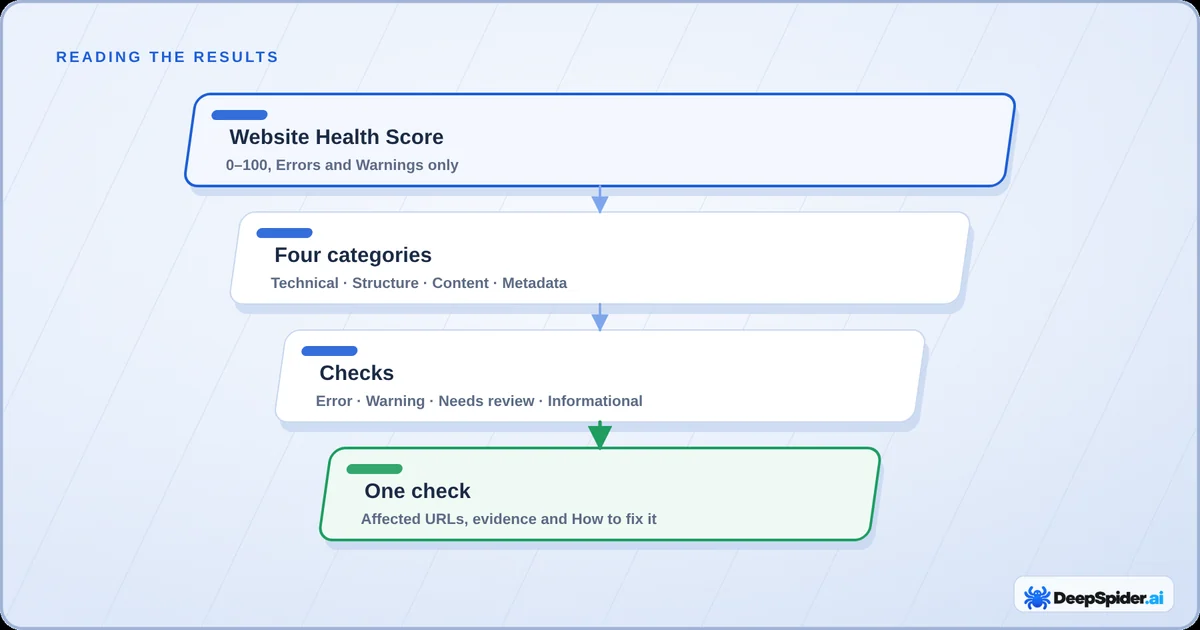
An audit gives you a score, six summary numbers and checks with evidence behind every finding. This guide shows what each part means and where to start fixing.
- Start with the line at the top: green means the audit checked everything it found, yellow names what limited it.
- Errors and Warnings lower the Website Health Score. Needs review and Informational checks don’t.
- Open a check to see the affected URLs, the evidence and How to fix it.
- Fix the Errors that affect many pages first, then run a new audit and compare.
Start with the result line
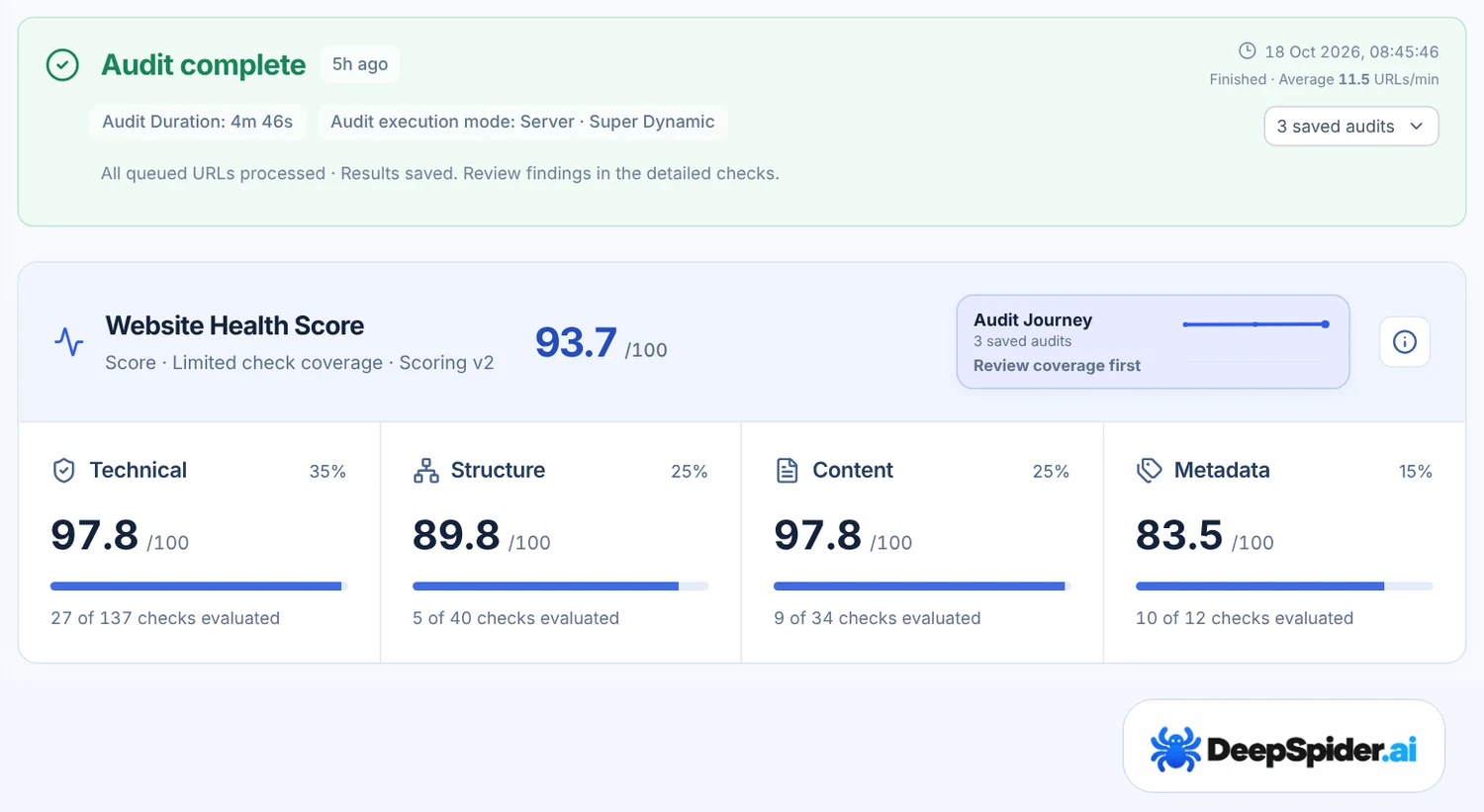
The box at the top of Audit Workspace tells you how the audit ended. Read it before the score, because it tells you how much of the website the numbers cover.
| You see | What it means |
|---|---|
| Audit complete (green) | DeepSpider checked every page and image it found, within your limits. |
| A yellow line with a reason, for example Page limit reached | The audit finished, but something limited it. The reason is named, and View audit notes explains it. Findings are valid for what was checked. |
| Audit paused | The website asked DeepSpider to slow down, or something on our side needs a moment. Most paused audits continue by themselves. |
| Audit ended or Audit blocked | The website needs a change before an audit can work. The box says what to change. |
Pauses and endings have their own guide: why an audit paused or ended.
Website Health Score and the four categories
The Website Health Score is a number from 0 to 100. It summarises the Errors and Warnings of the checks DeepSpider could evaluate, weighted by how many records each issue affects. Below it are four category scores: Technical, Structure, Content and Metadata.
The score is a DeepSpider summary, not a Google ranking signal. A high score can still hide a single important problem, and a large website can have many findings on a small share of its pages. Our guide Website Health Score, explained shows the full method with worked examples.
The six summary cards
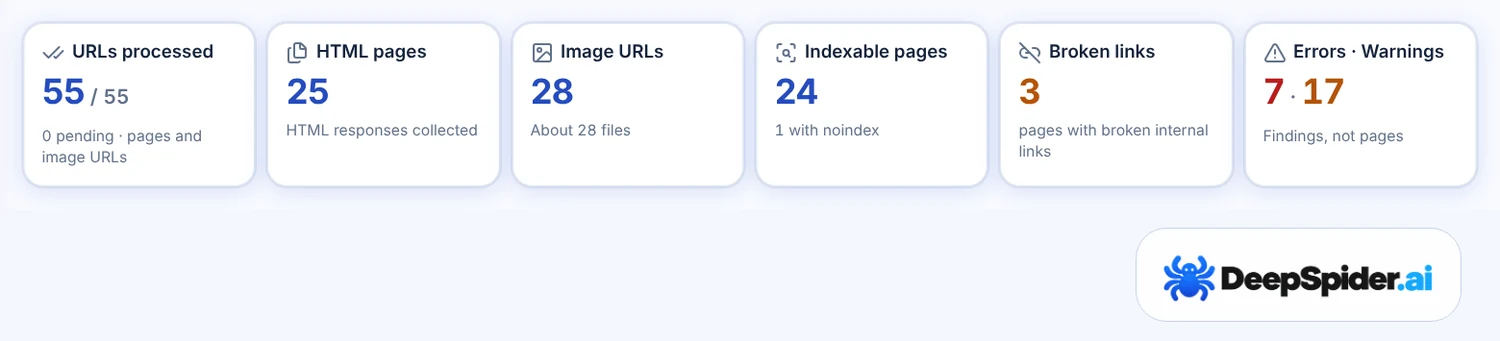
| Card | What it counts |
|---|---|
| URLs processed | Page and image URLs DeepSpider handled, out of all URLs it discovered. Pending URLs are shown below. |
| HTML pages | Working HTML pages that were audited. |
| Image URLs | Image addresses found, with an estimate of the number of image files. One image often has several sizes. |
| Indexable pages | HTML pages without a noindex rule. |
| Broken links | Pages that link to at least one broken address. |
| Errors · Warnings | Findings, not pages. One page can appear in several checks. |
Errors, Warnings, Needs review and Informational
Every check has one of four severities. Only the first two change the score.
| Severity | In the score | What to do |
|---|---|---|
| Error | Yes, strongly | Fix first, starting with the checks that affect many pages. |
| Warning | Yes, less | Fix when the Errors are done, or when a warning affects important pages. |
| Needs review | No | Decide yourself. These findings depend on intent, for example whether a page should have few internal links. |
| Informational | No | Facts about the website. Useful context, nothing to fix by default. |
A grey check marked Added later did not exist when the audit ran. It does not count as passed. Run a new audit to get it.
Guided and Professional views
Above the results you can choose your audit view. Both use the same audit and the same findings.
- Guided shows a short action plan: the priorities with the most impact, what to review yourself and how much of the website was covered. It suits a first look and people who don’t work with SEO every day.
- Professional shows every check, grouped by topic in the Audit topics menu, with the number of errors and warnings beside each topic.
Open a check and fix it
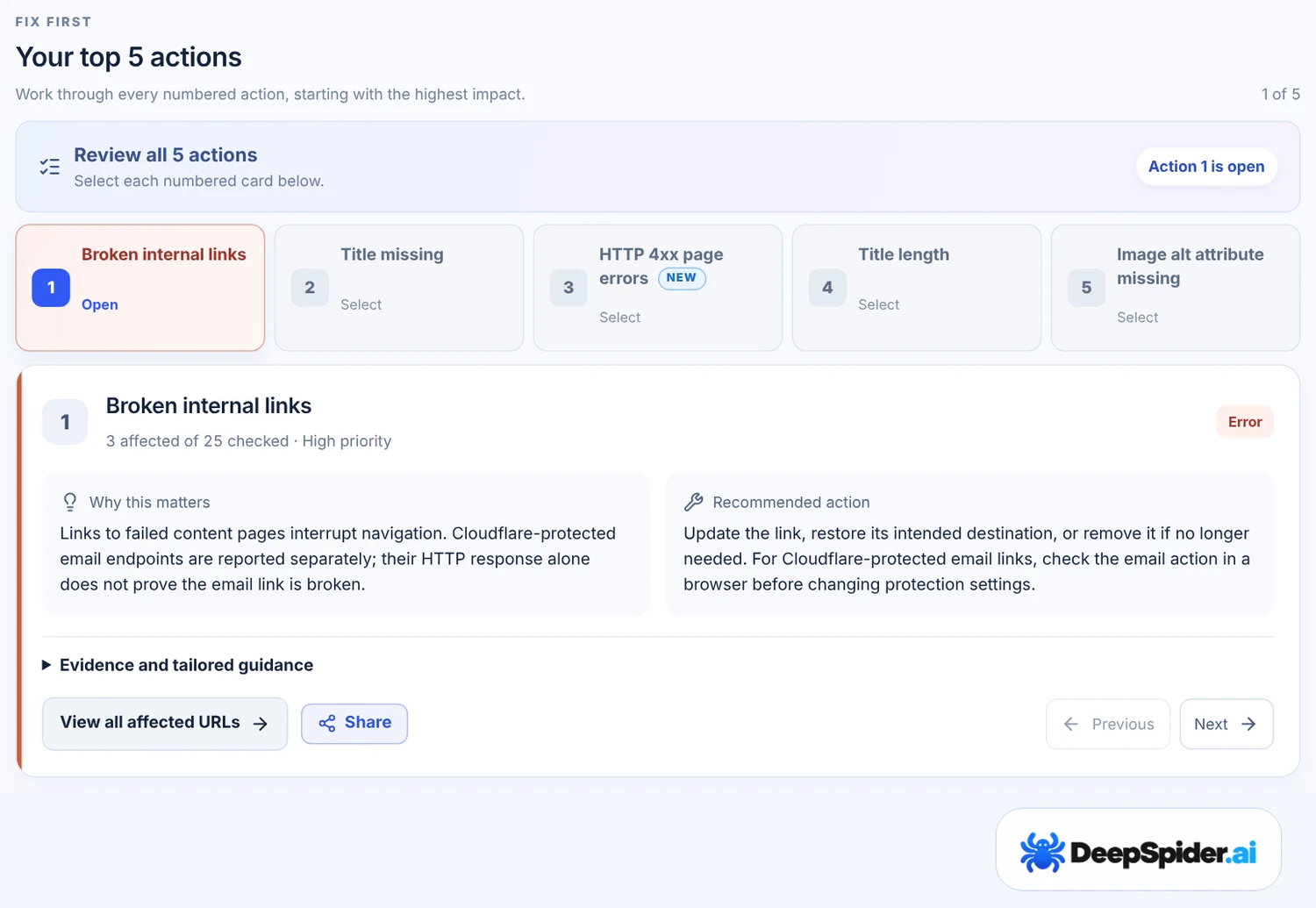
Every check opens the same way:
- What we check and Why it matters explain the check in plain language.
- How to fix it gives general steps. When the audit saved enough evidence, a situation-specific fix appears as well, for example for a particular content management system or server answer.
- Affected URLs lists every page with its evidence: the exact value found, the HTTP status or the linking page. You can search the list and copy it.
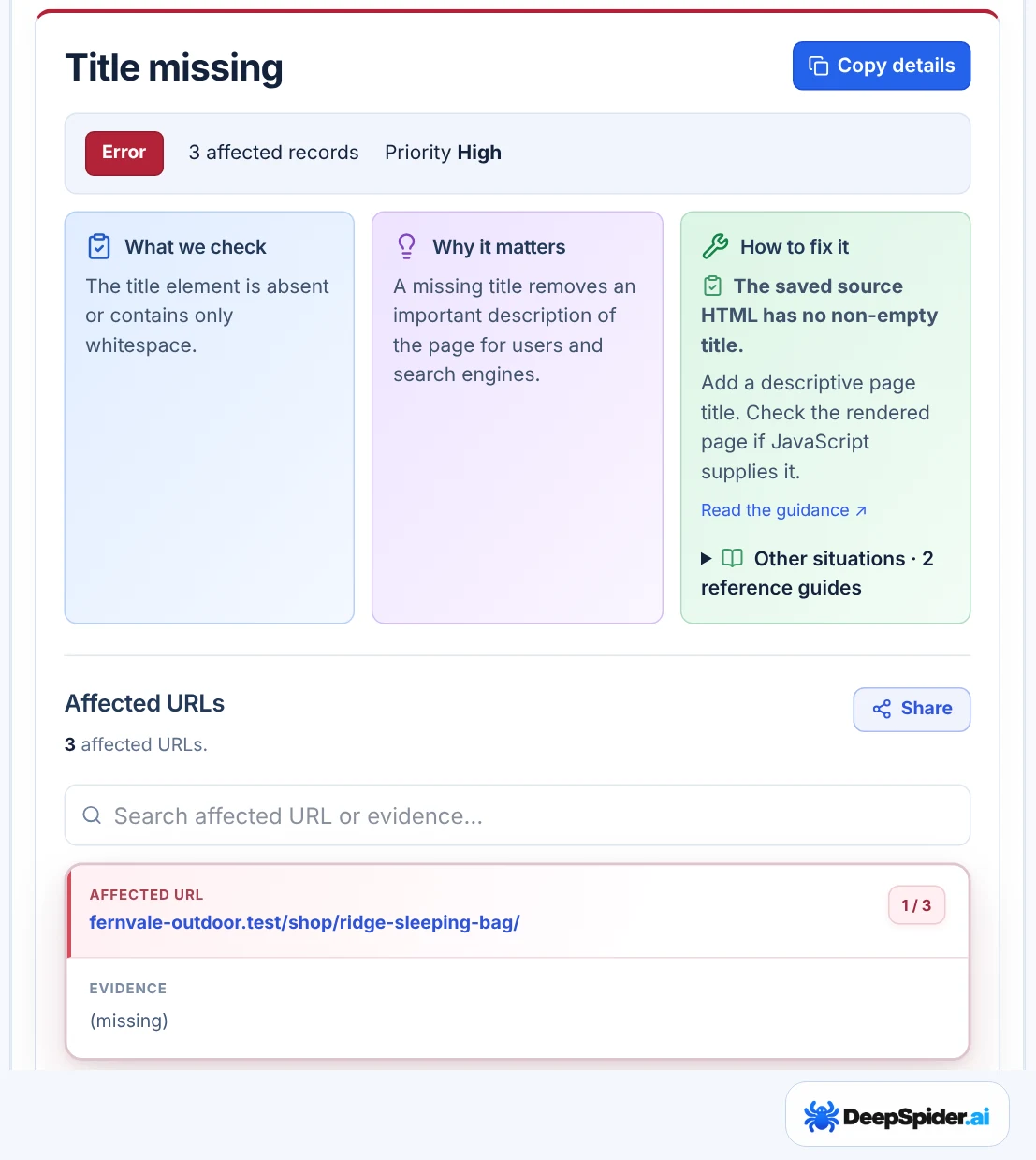
Two tools help you hand work over. Share creates a read-only link to one check for a developer, valid for 7 or 30 days and revocable. Export (top right) creates a PDF, Word, PowerPoint, Excel, CSV or AI-ready Markdown report.
On the Overview, Worth a look lists Needs review and Informational checks with findings. A group marked On every page usually needs one fix in the site template or the server, not page-by-page work.
After you fix something
Run a new audit when your changes are live. Compare Audits shows the two audits side by side: what improved, what got worse and which URLs changed. The Audit Journey chart in Audit Workspace shows how the score and the categories moved over time.
Compare like with like. Two audits with different limits or settings cover different parts of the website, so a lower count does not always mean a fix.
Questions & answers
Why does a website with thousands of findings still have a high score?
The score looks at the share of checked records each issue affects. Many findings on a small part of a large website lower the score less than one issue on most of its pages.
Are 1,000 errors the same as 1,000 broken pages?
No. The total counts findings across all checks, and one page can appear in several checks. Open a check to see how many of its records are affected.
Does Needs review mean something is wrong?
Not necessarily. These findings depend on what you want the website to do. Look at them, decide, and move on. They never lower the score.
Why did the counts change while the audit was running?
During an audit the counts are provisional and come from the pages saved so far. Some checks, such as duplicate titles or internal links, need the whole website before they are final.
What does a yellow result mean for the findings?
The findings are valid for the pages that were checked. The yellow line names what was left out, for example pages beyond the page limit or a sitemap the website refused.
Read the result line, then the score. Fix the Errors that affect many pages first, use Needs review as a list of decisions, and check every finding’s evidence before changing anything. Then audit again and compare.