
Allow DeepSpider
through your firewall.
When a firewall, CDN or security plugin turns DeepSpider away, the audit pauses or ends. Here is how to find the rule that did it and let the audit through, step by step for the services we see most often.
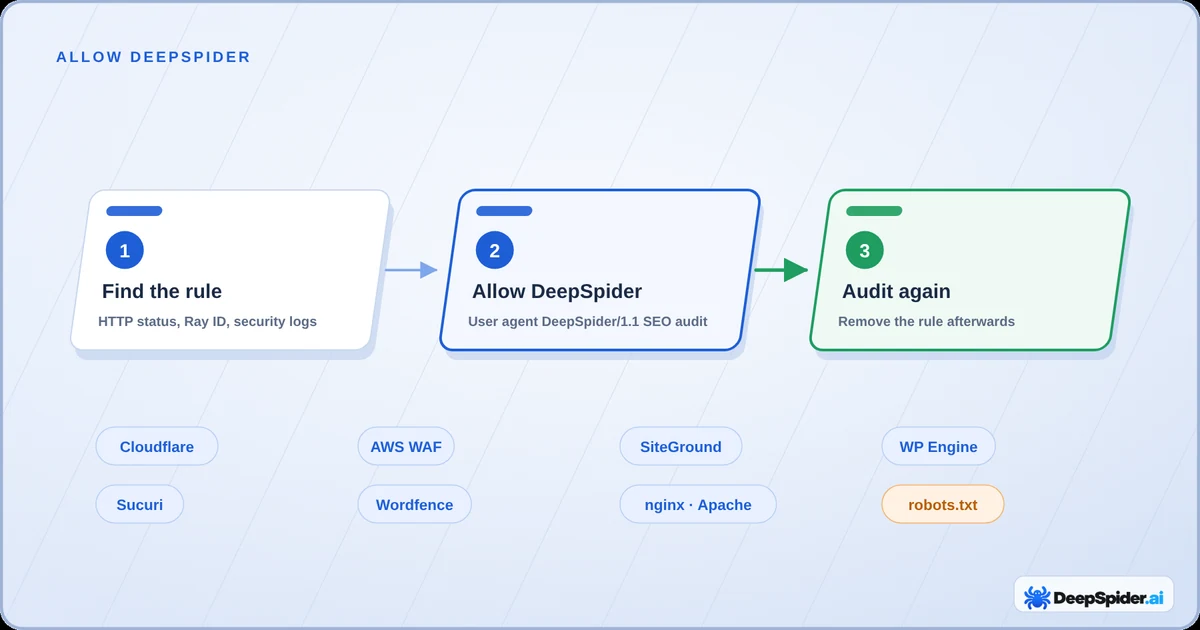
- DeepSpider identifies itself with the user agent
DeepSpider/1.1 SEO auditand runs from servers in Frankfurt, Germany. - First find the rule that refused it: the audit box shows the HTTP status and, for Cloudflare, the Ray ID.
- Then allow that user agent in the rule, or turn the rule off while the audit runs. DeepSpider has no fixed IP addresses yet, so IP allowlists don’t help.
- Anyone can send the same user agent. Keep the rule narrow and remove it when the audit has finished.
Find what refused DeepSpider
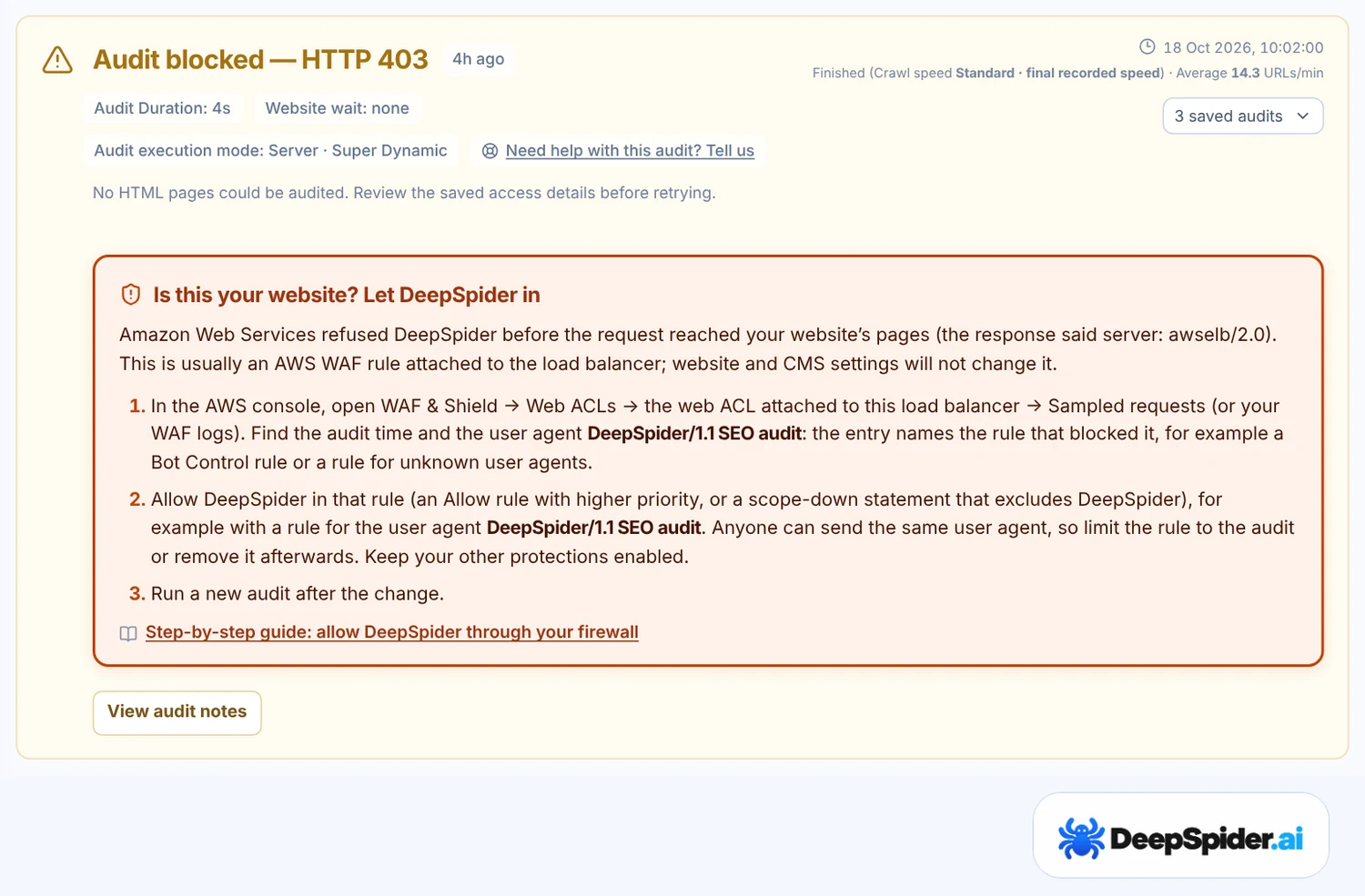
Open the audit in DeepSpider.ai. When a website turns DeepSpider away, the audit box says what the website answered and shows a box called Is this your website? with the first steps. Its link opens the matching part of this guide.
What DeepSpider sends and what the answer usually means:
| You see | What it usually means | Read |
|---|---|---|
| HTTP 403 with a Cloudflare Ray ID | A Cloudflare rule or bot setting refused the request. | Cloudflare |
| Challenge page or HTTP 429 with a challenge | Bot protection asked for a browser check, which an audit cannot pass. | Cloudflare, SiteGround |
HTTP 403 and server: awselb/2.0 or CloudFront | An AWS load balancer or CDN refused the request, often with AWS WAF. | AWS WAF |
| HTTP 403 from the website’s own server | A web server rule, security plugin or IP allowlist. | Your own server, Wordfence |
| HTTP 429 or 503 again and again | A rate limit, or a server that is busy or in maintenance. | Rate limits |
| No answer at all | Connections are dropped, often by a firewall or a country rule. | No answer |
| robots.txt blocks DeepSpider | robots.txt disallows crawlers it doesn’t name. | robots.txt |
Every request carries the user agent DeepSpider/1.1 SEO audit and comes from servers in Frankfurt, Germany. Search your firewall, CDN or hosting logs for that user agent at the time shown in the audit. DeepSpider has no fixed IP addresses yet, so allow it by user agent rather than by IP address.
Keep the rule narrow. Anyone can send the same user agent. Allow it only in the rule that blocked the audit, and remove the rule or switch the setting back on when the audit has finished.
Cloudflare
Find the event. The audit box shows the Cloudflare Ray ID when Cloudflare refused DeepSpider. In the Cloudflare dashboard, open Security Events for the website and add a filter for that Ray ID, or for the audit time. The event names the rule or setting that acted. Security Events can show sampled data, so a short time range finds more.
Allow DeepSpider with a Skip rule (all plans):
- Go to Security → Security rules → Create rule → Custom rules.
- Under When incoming requests match, choose Field User Agent, Operator contains, Value
DeepSpider/1.1 SEO audit. - Under Then take action, choose Skip and tick what blocked the audit: for example All remaining custom rules, All rate limiting rules, All managed rules or All Super Bot Fight Mode rules. Products such as Browser Integrity Check and Security Level are separate options in the same list.
- Deploy the rule and move it to the top of the list, so it runs before the rules it skips.
Bot Fight Mode cannot be skipped. On the Free plan, Bot Fight Mode ignores Skip and other custom rules. If the event names Bot Fight Mode, switch it off while the audit runs (Security → Settings → Bot traffic) and switch it back on afterwards. Super Bot Fight Mode on Pro, Business and Enterprise can be skipped with the rule above.
Cloudflare recommends custom rules instead of IP Access rules, and IP Access rules don’t help here because DeepSpider has no fixed IP addresses.
DeepSpider has applied to become a Cloudflare verified bot. After approval, many Cloudflare websites should accept audits without changes; a website’s own blocking rules can still refuse.
AWS WAF on a load balancer or CloudFront
A response with server: awselb/2.0 comes from an AWS Application Load Balancer, often with AWS WAF in front. It shows where to look, not which rule refused the request.
- Find the rule. In the AWS WAF console, open the web ACL (protection pack) attached to the load balancer or CloudFront distribution and choose Sampled requests. Find the audit time and the user agent
DeepSpider/1.1 SEO audit; the entry names the rule. Samples cover only the last 3 hours, so look soon after the audit, or use your WAF logs. - Allow DeepSpider. Add a rule that matches the header
user-agentcontainingDeepSpider/1.1 SEO auditwith the action Allow, and give it a higher priority (a lower number) than the blocking rule. Allow ends the evaluation, so later rules and managed rule groups don’t see the request. - If the Bot Control managed rule group blocked it, AWS documents a narrower fix: set the rule
SignalNonBrowserUserAgentto Count, then add a rule that blocks requests with its label unless the user agent is DeepSpider’s. A rate-based rule can exclude DeepSpider with a scope-down statement. - Run a new audit, then remove the rule or limit it to the time of your audits.
SiteGround
SiteGround’s Anti-Bot AI answers some automated visitors with a bot check (the audit shows SiteGround bot check (HTTP 202)). We did not find a setting that lets website owners allow a crawler there themselves.
- In Site Tools, open Security → Blocked Traffic and check that no entry blocks DeepSpider’s requests. This list blocks IP addresses and countries.
- Contact SiteGround support from the Client Area. Give the user agent
DeepSpider/1.1 SEO auditand the time of the audit, and ask them to let it through the Anti-Bot AI. - Run a new audit after they confirm.
SiteGround decides how its protection works. We cannot promise that support will make an exception.
WP Engine
WP Engine protects websites on its own platform, and its Global Edge Security uses Cloudflare. WP Engine manages those protections itself and says it cannot customise them for individual websites, so a website owner cannot switch them off.
- In the WP Engine User Portal, check your own Web Rules (Sites → environment → Web Rules) and any Global Edge Security traffic rules for anything that blocks DeepSpider’s user agent.
- Contact WP Engine support (live chat). Give the user agent
DeepSpider/1.1 SEO audit, the time of the audit and the Ray ID if the audit shows one, and ask whether DeepSpider can be allowed. - For the next audit you can choose Settings → General → Audit setup → Crawl speed → Standard, one page at a time, which triggers rate limits less often.
Sucuri Website Firewall
- Find the block. In the Sucuri firewall dashboard, open Audit Trails. It lists blocked requests with the URL and time.
- Check the list of blocked user agents. A pattern such as
spiderorbotalso matches DeepSpider. - Sucuri’s documentation describes allowing IP addresses and URL paths, not user agents. Because DeepSpider has no fixed IP address, contact Sucuri support with the user agent
DeepSpider/1.1 SEO auditand the audit time, and ask how to let it through.
Wordfence (WordPress)
- Find the block. Open Wordfence → Tools → Live Traffic and look for the user agent
DeepSpider/1.1 SEO auditat the audit time. A blocked request shows why it was blocked. - Rate limiting. In Wordfence → Firewall → All Firewall Options → Rate Limiting, raise If a crawler’s page views exceed, or choose Throttle instead of Block while the audit runs. The setting for Google’s crawlers applies only to verified Google crawlers, not to DeepSpider.
- Blocking rules. Under Wordfence → Blocking, check that no custom pattern blocks a browser user agent that matches DeepSpider, for example
spiderorbot.
We found no user agent allowlist in Wordfence; its allowlists are for IP addresses. The steps above are the way to let an audit through.
nginx, Apache and security plugins
When the website’s own server answers HTTP 403, look for rules that match user agents. Broad patterns are the usual cause, because spider and bot also match DeepSpider.
- nginx: rules such as
if ($http_user_agent ~* "(spider|bot|crawl)") { return 403; }in the server configuration. - Apache:
RewriteCond %{HTTP_USER_AGENT} spider [NC]followed byRewriteRule ^ - [F]in the virtual host or.htaccess. - Security plugins and ModSecurity may have their own lists of user agents or crawler limits.
- IP allowlists and country rules. A website that only admits certain IP addresses or countries refuses DeepSpider, which runs from Frankfurt, Germany.
Narrow the pattern, or add an exception for DeepSpider/1.1 SEO audit before it, then run a new audit.
When the website answers 429 or 503
HTTP 429 means too many requests; HTTP 503 means the server is unavailable for now. Many firewalls and security plugins also use these answers for automated visitors. DeepSpider pauses, keeps everything it checked and continues by itself more slowly, so often nothing is needed.
- Check whether maintenance mode is on and whether the website opens normally.
- Find the rate limit in your CDN, firewall or plugin logs at the audit time, and allow
DeepSpider/1.1 SEO auditin it or raise the limit while the audit runs. - Make sure robots.txt itself is not rate limited: crawlers read it before any page.
- For small or busy servers, choose Settings → General → Audit setup → Crawl speed → Standard for the next audit.
DeepSpider always follows a Retry-After header and never sends requests before the time the website names.
When the website gives no answer
If connections time out without even an error page, DeepSpider pauses after 10 minutes and tries again later.
- Check whether the website opens, and whether the server or hosting had an outage at the audit time.
- If it opens for you but not for DeepSpider, a firewall or hosting setting may drop connections from automated visitors or from other countries. DeepSpider runs from Frankfurt, Germany. Your hosting provider can see dropped connections in its logs.
- Behind Cloudflare, answers 520 to 526 mean Cloudflare did not get a valid answer from your own server. Check that the server is running, that its SSL certificate is valid and that it does not limit or block Cloudflare’s IP addresses.
When robots.txt blocks DeepSpider
DeepSpider always follows robots.txt. Some files allow a list of named crawlers and end with a group that disallows everything else:
User-agent: Googlebot
User-agent: Bingbot
Allow: /

User-agent: *
Disallow: /
Add User-agent: DeepSpider to the group that allows the other crawlers:
User-agent: Googlebot
User-agent: Bingbot
User-agent: DeepSpider
Allow: /

User-agent: *
Disallow: /
Don’t add a separate DeepSpider group unless you mean it. A crawler follows only the most specific group that names it, and that group replaces the rules under User-agent: *. A group with only User-agent: DeepSpider and Allow: / would also let DeepSpider into paths you disallow for everyone else, such as admin or cart pages.
If your CMS, an SEO plugin or the hosting panel creates robots.txt, change it there: the file on the server may be generated.
When robots.txt asks for a long Crawl-delay
Crawl-delay asks crawlers to wait between requests. DeepSpider follows it and waits at most 60 seconds, so a longer delay ends the audit: at 120 seconds per request, 1,000 pages would take about 33 hours.
- Delete the line, or turn it into a comment by adding
#in front of it, then run a new audit. - Googlebot ignores Crawl-delay. Bingbot and some other crawlers follow it, so they also stop waiting.
Our article What Crawl-delay really does explains the line in more detail.
After the change
- Paused audit: it continues by itself, or press Continue saved audit. Pages checked before the pause are kept.
- Ended or blocked audit: run a new audit. An audit that the website blocked before half of its pages were checked does not use one of your monthly audits.
- Remove the allow rule, or switch Bot Fight Mode or other settings back on, when the audit has finished.
Questions & answers
Which IP addresses does DeepSpider use?
DeepSpider has no fixed IP addresses yet. Its audit servers are in Frankfurt, Germany. Allow it by the user agent DeepSpider/1.1 SEO audit.
Is it safe to allow a user agent?
It is safe enough for an audit if the rule is narrow, because anyone can send the same user agent. Allow it only in the rule that blocked the audit and remove the rule afterwards.
Does DeepSpider respect robots.txt?
Yes. DeepSpider follows robots.txt rules, Crawl-delay up to 60 seconds and Retry-After. It never sends requests before the time a website names.
Does a block for DeepSpider mean Googlebot is blocked too?
Not necessarily. Firewalls often let verified search engine crawlers through by IP address. robots.txt rules and pages that need cookies do affect Googlebot as well.
I am not the website owner. What can I do?
Send this guide to the owner or developer. You can also try the next audit with the Standard crawl speed, which helps when the website only limits fast crawling.
Find the rule in the audit box or your security logs, allow DeepSpider/1.1 SEO audit in that rule, run the audit again and remove the rule afterwards. For robots.txt, add User-agent: DeepSpider to the group that already allows other crawlers.
- Available skip options · Cloudflare
- Create a custom rule in the dashboard · Cloudflare
- Bot Fight Mode · Cloudflare
- Security Events · Cloudflare
- Viewing a sample of web requests · AWS WAF
- Bot Control example: creating an exception for a blocked user agent · AWS WAF
- Configure Global Edge Security · WP Engine
- Configure Web Rules Engine · WP Engine
- Allowlist and blocklist · Sucuri
- Rate Limiting · Wordfence
- RFC 9309: Robots Exclusion Protocol · IETF
- How Google interprets the robots.txt specification · Google